> ## Documentation Index
> Fetch the complete documentation index at: https://flowdrop.mintlify.site/llms.txt
> Use this file to discover all available pages before exploring further.
# Creating workflows
> Build workflows visually using FlowDrop's drag-and-drop editor.
FlowDrop is a **visual, no-code workflow editor**. You build workflows by dragging nodes onto a canvas, connecting them together, and configuring each step — all without writing a single line of code.
## Adding nodes
Open the sidebar by clicking the **menu button** in the toolbar. The sidebar shows all available node types, organized by category. Drag any node from the sidebar onto the canvas to add it to your workflow.
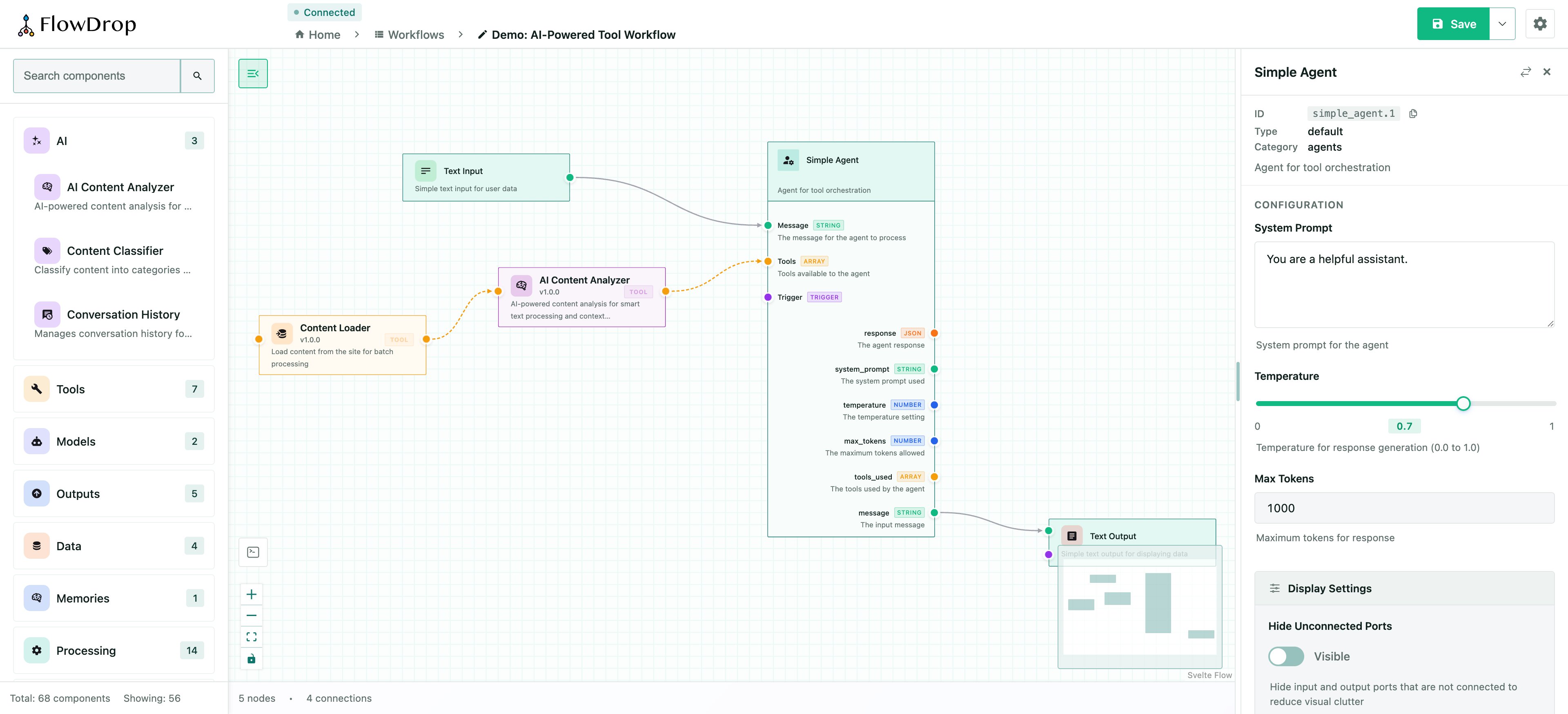 Each node type serves a different purpose — see [Node Types](/guides/node-types) for the full catalog.
## Connecting nodes
To define the flow between steps, connect nodes by dragging from an **output port** on one node to an **input port** on another. A line (edge) appears to show the connection.
You can also use **proximity connect** — simply drag a node close to another, and FlowDrop will automatically suggest a connection.
For details on port types and data validation, see [Port System & Data Types](/guides/port-system).
## Configuring nodes
Click on any node to open the **configuration panel** on the right side. Here you can edit the node's label, description, and any custom fields defined by its [configuration schema](/guides/config-schema).
The configuration form is generated automatically from the node's JSON Schema definition. Different field types (text, select, toggle, code editor, template) render based on the schema's `type` and `format` properties.
## Saving your workflow
Click the **Save** button in the toolbar to persist your workflow. FlowDrop also supports **auto-save drafts** so you never lose work in progress — drafts are saved to `localStorage` every 30 seconds by default.
You can control save behavior with [event handlers](/guides/advanced/event-system):
```typescript theme={null}
eventHandlers: {
onBeforeSave: async (workflow) => {
// Return false to cancel save
},
onAfterSave: async (workflow) => {
showNotification('Saved!');
}
}
```
## Import & export
FlowDrop supports importing and exporting workflows in two formats:
* **FlowDrop JSON** — the native format for full-fidelity round-trips
* **Oracle Agent Spec** — an open standard for AI agent workflows ([oracle/agent-spec](https://github.com/oracle/agent-spec))
For programmatic import/export, see the [Programmatic API](/guides/advanced/programmatic-api) guide. For Agent Spec integration, see [Agent Spec](/guides/advanced/agent-spec).
## Keyboard shortcuts
| Shortcut | Action |
| ---------------------- | ---------------------------- |
| `Ctrl/Cmd + Z` | Undo |
| `Ctrl/Cmd + Shift + Z` | Redo |
| `Ctrl/Cmd + S` | Save workflow |
| `Delete` / `Backspace` | Delete selected node or edge |
| `Ctrl/Cmd + A` | Select all |
| Scroll wheel | Zoom in/out |
## Next steps
* [Node Types](/guides/node-types) — visual catalog of all built-in node types
* [Configuration Schema](/guides/config-schema) — define custom form fields
* [Event System](/guides/advanced/event-system) — hook into save, change, and error events
Each node type serves a different purpose — see [Node Types](/guides/node-types) for the full catalog.
## Connecting nodes
To define the flow between steps, connect nodes by dragging from an **output port** on one node to an **input port** on another. A line (edge) appears to show the connection.
You can also use **proximity connect** — simply drag a node close to another, and FlowDrop will automatically suggest a connection.
For details on port types and data validation, see [Port System & Data Types](/guides/port-system).
## Configuring nodes
Click on any node to open the **configuration panel** on the right side. Here you can edit the node's label, description, and any custom fields defined by its [configuration schema](/guides/config-schema).
The configuration form is generated automatically from the node's JSON Schema definition. Different field types (text, select, toggle, code editor, template) render based on the schema's `type` and `format` properties.
## Saving your workflow
Click the **Save** button in the toolbar to persist your workflow. FlowDrop also supports **auto-save drafts** so you never lose work in progress — drafts are saved to `localStorage` every 30 seconds by default.
You can control save behavior with [event handlers](/guides/advanced/event-system):
```typescript theme={null}
eventHandlers: {
onBeforeSave: async (workflow) => {
// Return false to cancel save
},
onAfterSave: async (workflow) => {
showNotification('Saved!');
}
}
```
## Import & export
FlowDrop supports importing and exporting workflows in two formats:
* **FlowDrop JSON** — the native format for full-fidelity round-trips
* **Oracle Agent Spec** — an open standard for AI agent workflows ([oracle/agent-spec](https://github.com/oracle/agent-spec))
For programmatic import/export, see the [Programmatic API](/guides/advanced/programmatic-api) guide. For Agent Spec integration, see [Agent Spec](/guides/advanced/agent-spec).
## Keyboard shortcuts
| Shortcut | Action |
| ---------------------- | ---------------------------- |
| `Ctrl/Cmd + Z` | Undo |
| `Ctrl/Cmd + Shift + Z` | Redo |
| `Ctrl/Cmd + S` | Save workflow |
| `Delete` / `Backspace` | Delete selected node or edge |
| `Ctrl/Cmd + A` | Select all |
| Scroll wheel | Zoom in/out |
## Next steps
* [Node Types](/guides/node-types) — visual catalog of all built-in node types
* [Configuration Schema](/guides/config-schema) — define custom form fields
* [Event System](/guides/advanced/event-system) — hook into save, change, and error events