> ## Documentation Index
> Fetch the complete documentation index at: https://flowdrop.mintlify.site/llms.txt
> Use this file to discover all available pages before exploring further.
# Node types
> Built-in node types and the port system in FlowDrop.
FlowDrop ships with 9 built-in node types, each designed for specific workflow patterns.
## Built-in types
| Type | Purpose | Description |
| ---------- | ------------------- | ------------------------------------------------- |
| `default` | Full-featured nodes | Input/output port lists, icon, label, description |
| `simple` | Compact layout | Header with icon and description, space-efficient |
| `square` | Icon-only | Minimal design for simple operations |
| `tool` | AI agent tools | Tool metadata with badge label |
| `gateway` | Branching logic | Conditional output paths with multiple branches |
| `terminal` | Start/end points | Circular nodes for workflow entry and exit |
| `idea` | Conceptual flow | BPMN-like flow nodes for conceptual diagrams |
| `note` | Documentation | Markdown-enabled sticky notes (no execution) |
| `atom` | Value supplier | Minimalist label-only pill that supplies a value |
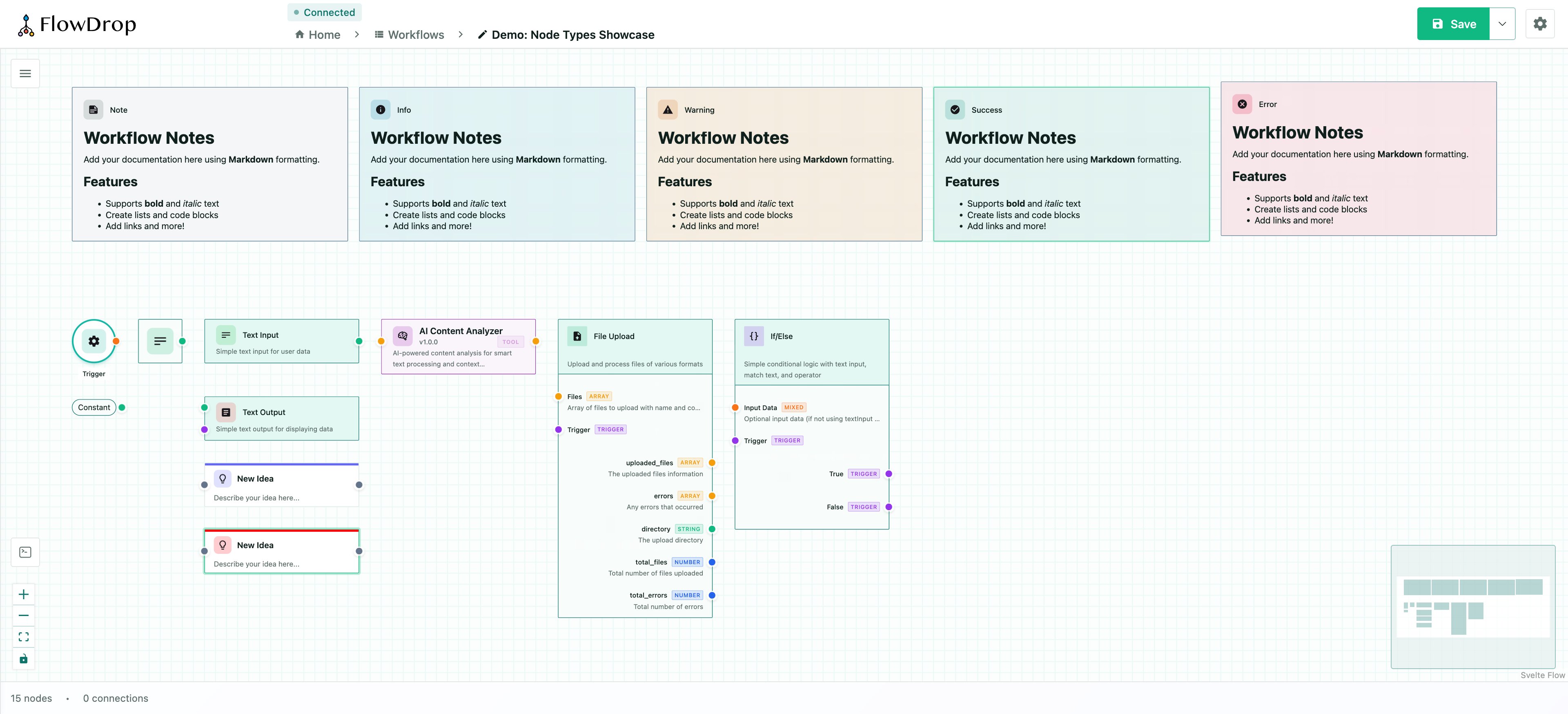 For the complete JSON structure, see [Node Structure](/guides/node-json). For port definitions and data types, see [Port System & Data Types](/guides/port-system).
### `default`
Full-featured node with input/output port lists, icon, label, and description. Suitable for most workflow steps.
### `simple`
Compact layout with header icon and description. Space-efficient for nodes that don't need visible ports.
### `square`
Icon-only minimal design. Ideal for simple operations where the icon alone conveys the purpose.
### `tool`
Designed for AI agent tools. Displays tool metadata including version, badge label, and description.
### `gateway`
Branching logic node with conditional output paths. Supports multiple branches for routing workflow execution.
### `terminal`
Circular start/end point nodes. Used to mark workflow entry and exit points.
### `idea`
Conceptual idea node for BPMN-like flow diagrams. Lightweight node with a colored top border accent.
### `note`
Markdown-enabled sticky notes for documentation. These are non-executing nodes meant for annotations.
### `atom`
A minimalist, label-only node that renders as a compact pill hugging its content — designed for "supplies a value" nodes such as a Constant (and Cast in the future). The atom owns no domain semantics of its own; what it shows and the data type it emits are driven entirely by configuration, so a single node type can back many small value-providing nodes.
The body text resolves in order:
1. The value of the config key named by `valueKey` (using the field's `oneOf` titles when present)
2. The node's `label`
3. The `placeholder`, rendered dimmed
The bound output port's data type can be driven dynamically from config, and a server- or definition-provided `color` accents the pill border.
Display and behavior are configured through `extensions.ui.atom` (`AtomUIConfig`):
| Property | Type | Description |
| -------------- | ----------------------- | ----------------------------------------------------------------------------------------------------------------------------- |
| `valueKey` | `string` | Config key whose value becomes the node body. Falls back to `data.label`. |
| `valueTypeKey` | `string` | Config key holding the selected value's type (a port `dataType` id). The bound output port adopts this type. |
| `outputPortId` | `string` | Output port id driven by `valueTypeKey`. Defaults to the first output port. |
| `shape` | `'pill' \| 'rectangle'` | Body shape. `'pill'` (default) is fully rounded; `'rectangle'` is lightly rounded. |
| `prefix` | `string` | Dimmed affordance rendered before the body (e.g. `'→ '`). Stays visible while the body ellipsizes; hidden in the empty state. |
| `placeholder` | `string` | Text shown (dimmed) when the resolved body value is empty or unset. |
| `maxWidth` | `number` | Max body width in px before the label ellipsizes. |
```json theme={null}
{
"type": "atom",
"extensions": {
"ui": {
"atom": {
"valueKey": "value",
"valueTypeKey": "valueType",
"shape": "pill",
"prefix": "= ",
"placeholder": "Set a value…",
"maxWidth": 120
}
}
}
}
```
Ports are resolved from the node's definition like any other node, so atoms participate in connection validation and proximity connect normally. The pill is a fixed 40px tall; when it has a single port, the handle centers vertically, and multiple ports distribute evenly.
## Connection validation
FlowDrop validates connections automatically:
* **Type compatibility** — only compatible port data types can connect
* **Cycle detection** — prevents circular dependencies (O(V+E) algorithm)
* **Loopback prevention** — nodes cannot connect to themselves
### Proximity connect
When dragging a node near compatible ports, FlowDrop can auto-connect them. This is configurable via editor settings:
```typescript theme={null}
const app = await mountFlowDropApp(container, {
settings: {
editor: {
proximityConnect: true,
proximityConnectDistance: 50 // pixels
}
}
});
```
## Dynamic ports
Nodes can define user-configurable ports through special config properties:
```json theme={null}
{
"dynamicInputs": {
"type": "array",
"title": "Input Ports",
"items": {
"type": "object",
"properties": {
"id": { "type": "string", "title": "Port ID" },
"name": { "type": "string", "title": "Port Name" },
"dataType": { "type": "string", "title": "Data Type", "default": "any" }
}
}
}
}
```
## Custom node types
Beyond the built-in types, you can register custom Svelte components as node types. See the [Custom Nodes guide](/guides/custom-nodes) for details.
For the complete JSON structure, see [Node Structure](/guides/node-json). For port definitions and data types, see [Port System & Data Types](/guides/port-system).
### `default`
Full-featured node with input/output port lists, icon, label, and description. Suitable for most workflow steps.
### `simple`
Compact layout with header icon and description. Space-efficient for nodes that don't need visible ports.
### `square`
Icon-only minimal design. Ideal for simple operations where the icon alone conveys the purpose.
### `tool`
Designed for AI agent tools. Displays tool metadata including version, badge label, and description.
### `gateway`
Branching logic node with conditional output paths. Supports multiple branches for routing workflow execution.
### `terminal`
Circular start/end point nodes. Used to mark workflow entry and exit points.
### `idea`
Conceptual idea node for BPMN-like flow diagrams. Lightweight node with a colored top border accent.
### `note`
Markdown-enabled sticky notes for documentation. These are non-executing nodes meant for annotations.
### `atom`
A minimalist, label-only node that renders as a compact pill hugging its content — designed for "supplies a value" nodes such as a Constant (and Cast in the future). The atom owns no domain semantics of its own; what it shows and the data type it emits are driven entirely by configuration, so a single node type can back many small value-providing nodes.
The body text resolves in order:
1. The value of the config key named by `valueKey` (using the field's `oneOf` titles when present)
2. The node's `label`
3. The `placeholder`, rendered dimmed
The bound output port's data type can be driven dynamically from config, and a server- or definition-provided `color` accents the pill border.
Display and behavior are configured through `extensions.ui.atom` (`AtomUIConfig`):
| Property | Type | Description |
| -------------- | ----------------------- | ----------------------------------------------------------------------------------------------------------------------------- |
| `valueKey` | `string` | Config key whose value becomes the node body. Falls back to `data.label`. |
| `valueTypeKey` | `string` | Config key holding the selected value's type (a port `dataType` id). The bound output port adopts this type. |
| `outputPortId` | `string` | Output port id driven by `valueTypeKey`. Defaults to the first output port. |
| `shape` | `'pill' \| 'rectangle'` | Body shape. `'pill'` (default) is fully rounded; `'rectangle'` is lightly rounded. |
| `prefix` | `string` | Dimmed affordance rendered before the body (e.g. `'→ '`). Stays visible while the body ellipsizes; hidden in the empty state. |
| `placeholder` | `string` | Text shown (dimmed) when the resolved body value is empty or unset. |
| `maxWidth` | `number` | Max body width in px before the label ellipsizes. |
```json theme={null}
{
"type": "atom",
"extensions": {
"ui": {
"atom": {
"valueKey": "value",
"valueTypeKey": "valueType",
"shape": "pill",
"prefix": "= ",
"placeholder": "Set a value…",
"maxWidth": 120
}
}
}
}
```
Ports are resolved from the node's definition like any other node, so atoms participate in connection validation and proximity connect normally. The pill is a fixed 40px tall; when it has a single port, the handle centers vertically, and multiple ports distribute evenly.
## Connection validation
FlowDrop validates connections automatically:
* **Type compatibility** — only compatible port data types can connect
* **Cycle detection** — prevents circular dependencies (O(V+E) algorithm)
* **Loopback prevention** — nodes cannot connect to themselves
### Proximity connect
When dragging a node near compatible ports, FlowDrop can auto-connect them. This is configurable via editor settings:
```typescript theme={null}
const app = await mountFlowDropApp(container, {
settings: {
editor: {
proximityConnect: true,
proximityConnectDistance: 50 // pixels
}
}
});
```
## Dynamic ports
Nodes can define user-configurable ports through special config properties:
```json theme={null}
{
"dynamicInputs": {
"type": "array",
"title": "Input Ports",
"items": {
"type": "object",
"properties": {
"id": { "type": "string", "title": "Port ID" },
"name": { "type": "string", "title": "Port Name" },
"dataType": { "type": "string", "title": "Data Type", "default": "any" }
}
}
}
}
```
## Custom node types
Beyond the built-in types, you can register custom Svelte components as node types. See the [Custom Nodes guide](/guides/custom-nodes) for details.