

What you’ll learnHow to define a node, group it into a category, and pass both to the editor so
it appears in the sidebar.
Core concepts
FlowDrop needs two things to populate the sidebar:- Nodes — definitions of the building blocks users can drag onto the canvas.
- Categories — groups that organize nodes in the sidebar.
Defining a node
A node is a plain object describing its identity, appearance, and ports:Icons
Theicon field accepts any Iconify icon identifier in set:name format. FlowDrop uses @iconify/svelte to render icons, which loads them on demand from the Iconify API — so you have access to 200,000+ icons from 150+ open-source icon sets without bundling anything extra.
Install
@iconify/svelte to render icons.It’s an optional peer dependency of FlowDrop; if it’s not installed, icons will
not render. See the Icons reference for full details,
including built-in defaults and fallback behavior.The configSchema and JSON Schema
The configSchema field uses JSON Schema — an open standard for describing the structure of JSON data. FlowDrop reads this schema and automatically generates a configuration form for each node, so you never need to build form UI by hand.
In the example above, the schema defines a single placeholder property of type string:
Defining a category
A category groups related nodes in the sidebar:id must match the category field in your node definitions.
Mounting with nodes
Pass thenodes and categories arrays when mounting, along with the endpointConfig from the previous step:
Try it
In your editor:- Open the sidebar and drag Text Input onto the canvas.
- Click the node to open its configuration panel.
- Change the Placeholder value — this is generated from the
configSchema.
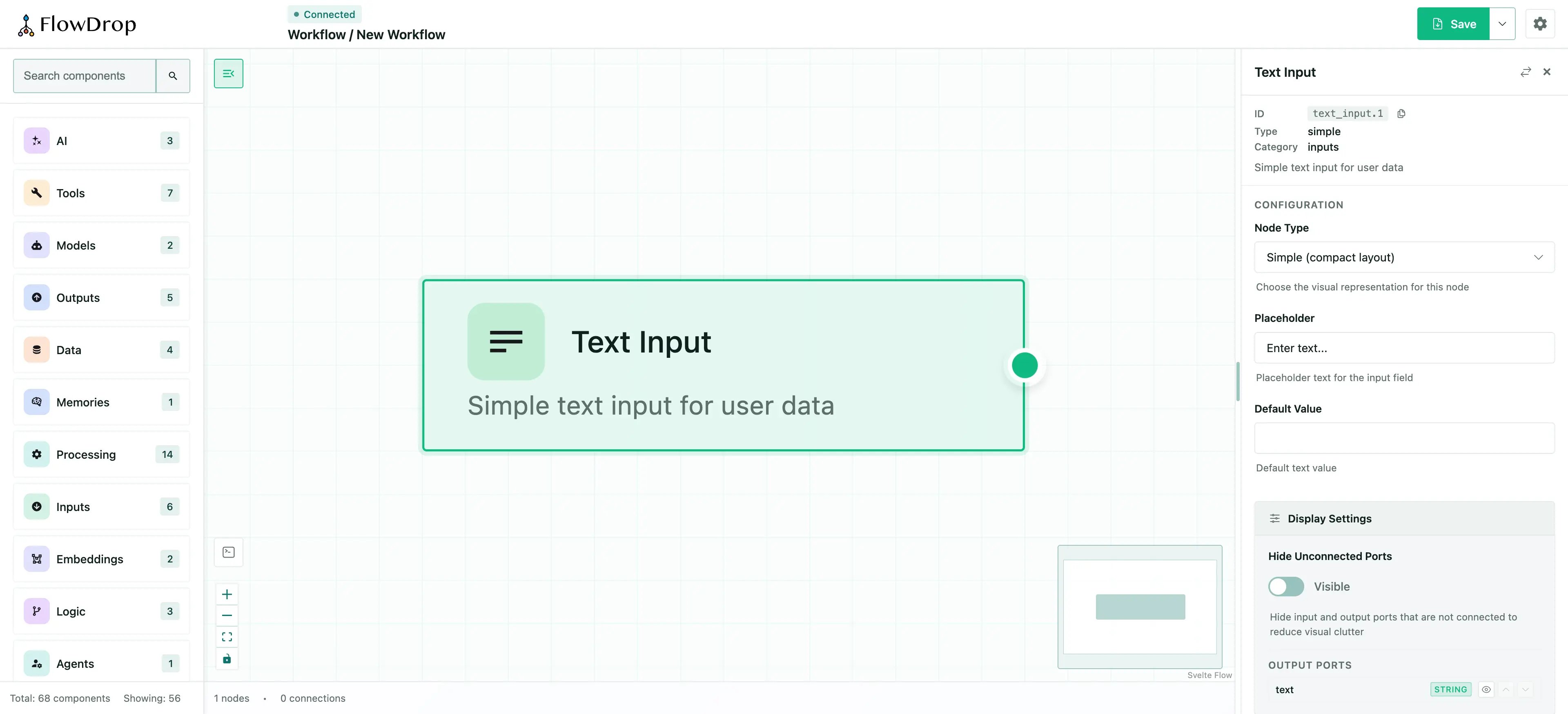
The Text Input node on the canvas with its configuration panel open.
What’s next
One node is a good start, but workflows need variety. Next, you’ll add multiple nodes across several categories to build a full editing experience.Tutorial — Step 3 of 5 ← Configuring endpoints · Next: Nodes & categories →