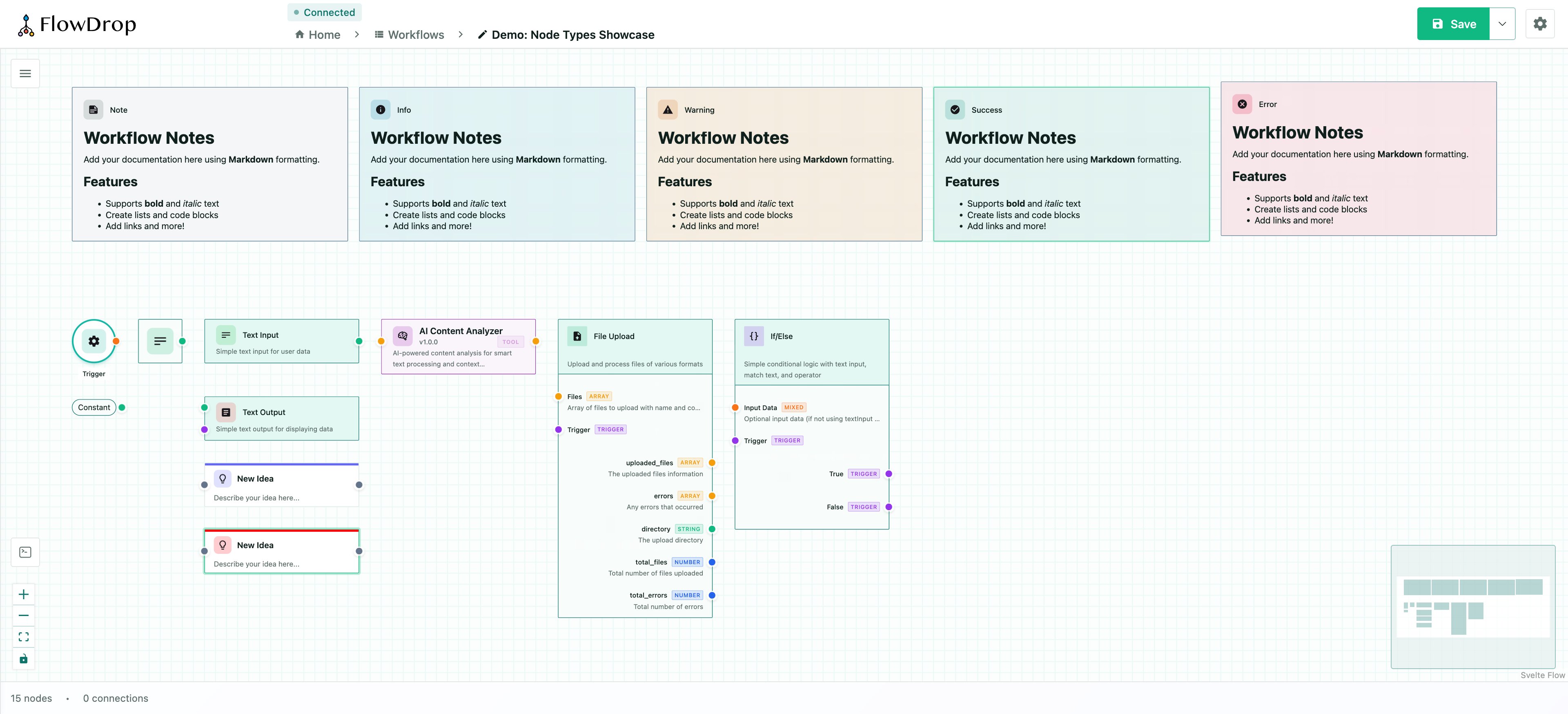
FlowDrop ships with 9 built-in node types, each designed for specific workflow patterns.

Built-in types

TypePurposeDescription
defaultFull-featured nodesInput/output port lists, icon, label, description
simpleCompact layoutHeader with icon and description, space-efficient
squareIcon-onlyMinimal design for simple operations
toolAI agent toolsTool metadata with badge label
gatewayBranching logicConditional output paths with multiple branches
terminalStart/end pointsCircular nodes for workflow entry and exit
ideaConceptual flowBPMN-like flow nodes for conceptual diagrams
noteDocumentationMarkdown-enabled sticky notes (no execution)
atomValue supplierMinimalist label-only pill that supplies a value
Catalog of FlowDrop's nine built-in node types: default, simple, square, tool, gateway, terminal, idea, note, and atom.
For the complete JSON structure, see Node Structure. For port definitions and data types, see Port System & Data Types.

default

Full-featured node with input/output port lists, icon, label, and description. Suitable for most workflow steps.

simple

Compact layout with header icon and description. Space-efficient for nodes that don’t need visible ports.

square

Icon-only minimal design. Ideal for simple operations where the icon alone conveys the purpose.

tool

Designed for AI agent tools. Displays tool metadata including version, badge label, and description.

gateway

Branching logic node with conditional output paths. Supports multiple branches for routing workflow execution.

terminal

Circular start/end point nodes. Used to mark workflow entry and exit points.

idea

Conceptual idea node for BPMN-like flow diagrams. Lightweight node with a colored top border accent.

note

Markdown-enabled sticky notes for documentation. These are non-executing nodes meant for annotations.

atom

A minimalist, label-only node that renders as a compact pill hugging its content — designed for “supplies a value” nodes such as a Constant (and Cast in the future). The atom owns no domain semantics of its own; what it shows and the data type it emits are driven entirely by configuration, so a single node type can back many small value-providing nodes. The body text resolves in order:
  1. The value of the config key named by valueKey (using the field’s oneOf titles when present)
  2. The node’s label
  3. The placeholder, rendered dimmed
The bound output port’s data type can be driven dynamically from config, and a server- or definition-provided color accents the pill border. Display and behavior are configured through extensions.ui.atom (AtomUIConfig):
PropertyTypeDescription
valueKeystringConfig key whose value becomes the node body. Falls back to data.label.
valueTypeKeystringConfig key holding the selected value’s type (a port dataType id). The bound output port adopts this type.
outputPortIdstringOutput port id driven by valueTypeKey. Defaults to the first output port.
shape'pill' | 'rectangle'Body shape. 'pill' (default) is fully rounded; 'rectangle' is lightly rounded.
prefixstringDimmed affordance rendered before the body (e.g. '→ '). Stays visible while the body ellipsizes; hidden in the empty state.
placeholderstringText shown (dimmed) when the resolved body value is empty or unset.
maxWidthnumberMax body width in px before the label ellipsizes.
{
  "type": "atom",
  "extensions": {
    "ui": {
      "atom": {
        "valueKey": "value",
        "valueTypeKey": "valueType",
        "shape": "pill",
        "prefix": "= ",
        "placeholder": "Set a value…",
        "maxWidth": 120
      }
    }
  }
}
Ports are resolved from the node’s definition like any other node, so atoms participate in connection validation and proximity connect normally. The pill is a fixed 40px tall; when it has a single port, the handle centers vertically, and multiple ports distribute evenly.

Connection validation

FlowDrop validates connections automatically:
  • Type compatibility — only compatible port data types can connect
  • Cycle detection — prevents circular dependencies (O(V+E) algorithm)
  • Loopback prevention — nodes cannot connect to themselves

Proximity connect

When dragging a node near compatible ports, FlowDrop can auto-connect them. This is configurable via editor settings:
const app = await mountFlowDropApp(container, {
  settings: {
    editor: {
      proximityConnect: true,
      proximityConnectDistance: 50 // pixels
    }
  }
});

Dynamic ports

Nodes can define user-configurable ports through special config properties:
{
  "dynamicInputs": {
    "type": "array",
    "title": "Input Ports",
    "items": {
      "type": "object",
      "properties": {
        "id": { "type": "string", "title": "Port ID" },
        "name": { "type": "string", "title": "Port Name" },
        "dataType": { "type": "string", "title": "Data Type", "default": "any" }
      }
    }
  }
}

Custom node types

Beyond the built-in types, you can register custom Svelte components as node types. See the Custom Nodes guide for details.